


Save any recipe you like in the browser
Add Daily Simmer to Chrome, Edge, or Firefox on your computer. When a recipe catches your eye, save it to your library from the page, without copying a link.


Three ways to save
Use whichever is closest to hand. Each one sends the page to your recipe library.
The button
Select Daily Simmer in the toolbar, then Save this page.
Right-click
On a page or a link, choose Save to Daily Simmer.
The keyboard
Press Alt+Shift+D to save the page you’re on. On a Mac, Alt is the Option key.
Connect once, keep reading
Connect your account once, from the extension.


Save, and the recipe comes in while you stay on the page.
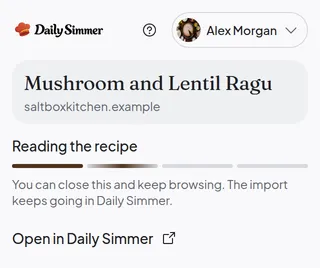
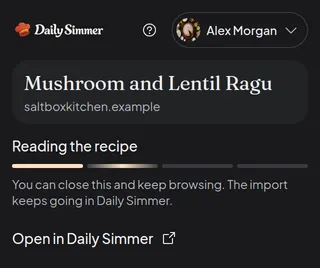
Open the recipe, or find it later in your library.




On your phone, use Share
Extensions are for computers. On a phone, the Share button gets a recipe to Daily Simmer.
Where you found the recipe, choose Share, then Copy link. If you use the Daily Simmer app, choose Daily Simmer instead.
Open Daily Simmer, choose Add recipe, and paste the link. The recipe comes in the same way.
Questions about the extension
Where can I see which browsers are connected?
Each browser you connect appears in Settings > Connected apps, with when it was last used. Disconnect it there or from the extension, and your recipes stay where they are.
What does the extension send when I save?
The address of the page or link you chose, not the page itself. The extension runs no script on other sites.
How do I add, pin, and connect it?
Each step is in the help article How to add, pin, and connect the extension.


Bring your first recipe home.
Paste a link, snap a card, or start from an idea.