


Daily Simmer can send any shopping list straight to another app. If you keep your list in Home Assistant, in Bring through a bridge, or somewhere you built yourself, you can hand it over without retyping a thing.
Webhooks are set up and sent from Daily Simmer on the web. This page explains how to set that up. Further down, for anyone building the other end, it documents exactly what we send.
What a webhook is
A webhook is a web address that belongs to you, which other apps can send information to. It looks like an ordinary link:
https://example.com/hooks/shopping/8f2c1d9e4b7a3506c1e8d2f4a9b6730e
You do not create that address here. The app on the receiving end gives it to you: Home Assistant makes one for you, a bridge you are running will print one, and if a friend set something up for you they will pass one along. Your job is to paste it into Daily Simmer. There is nothing to install and no account to connect.
Daily Simmer calls each saved address an endpoint, which is the word you will see in the app.
Two things surprise people, so they are worth knowing before you start:
- Sending is something you do, not something that happens by itself. We do not watch your list and forward changes as you make them. You open the list and choose to send it. Nothing leaves Daily Simmer until you ask.
- We only send what you still need to buy. Anything you have already ticked off is left out. A list of fifty items where forty are ticked sends ten.
Add an endpoint
Open a shopping list, open the List options menu (the ⋮ button next to the list's name), and choose Sync with other apps. Give your endpoint a name, paste the address into Webhook URL, and choose Add endpoint.
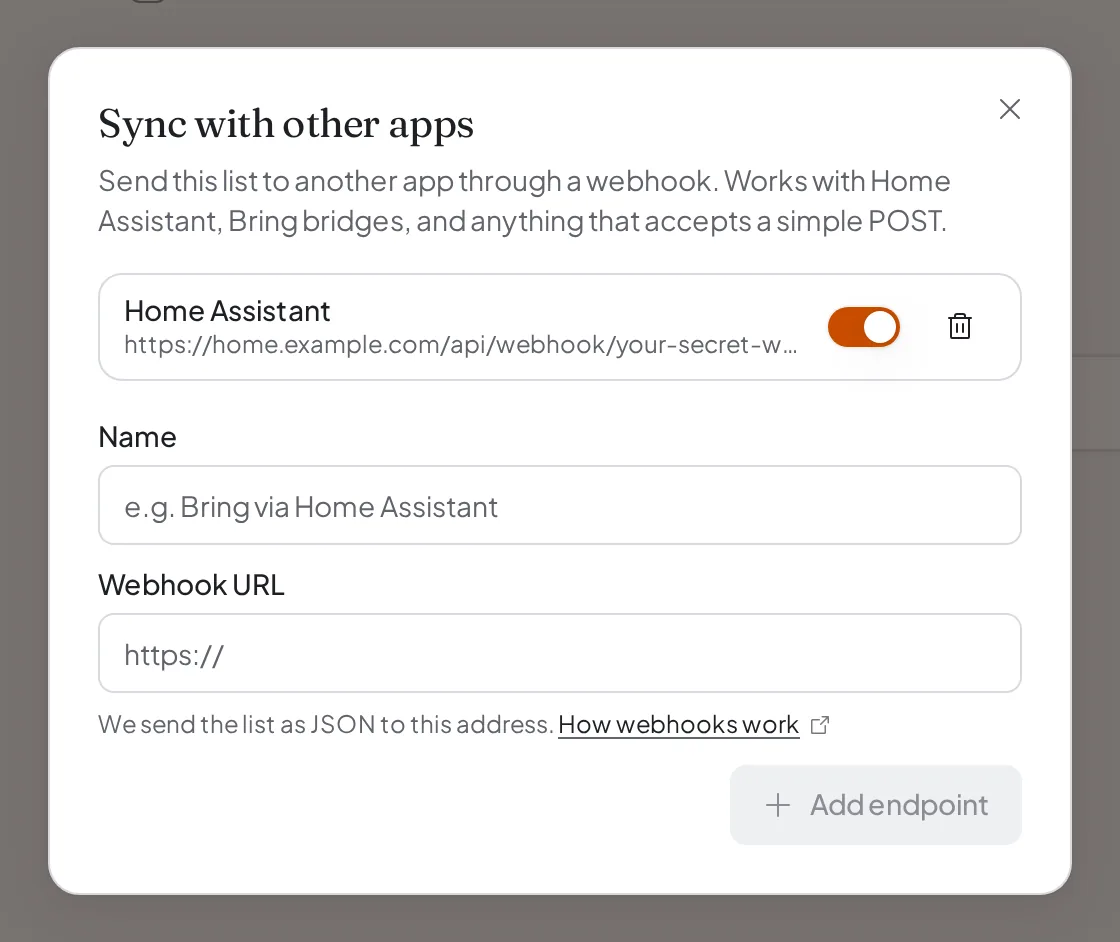
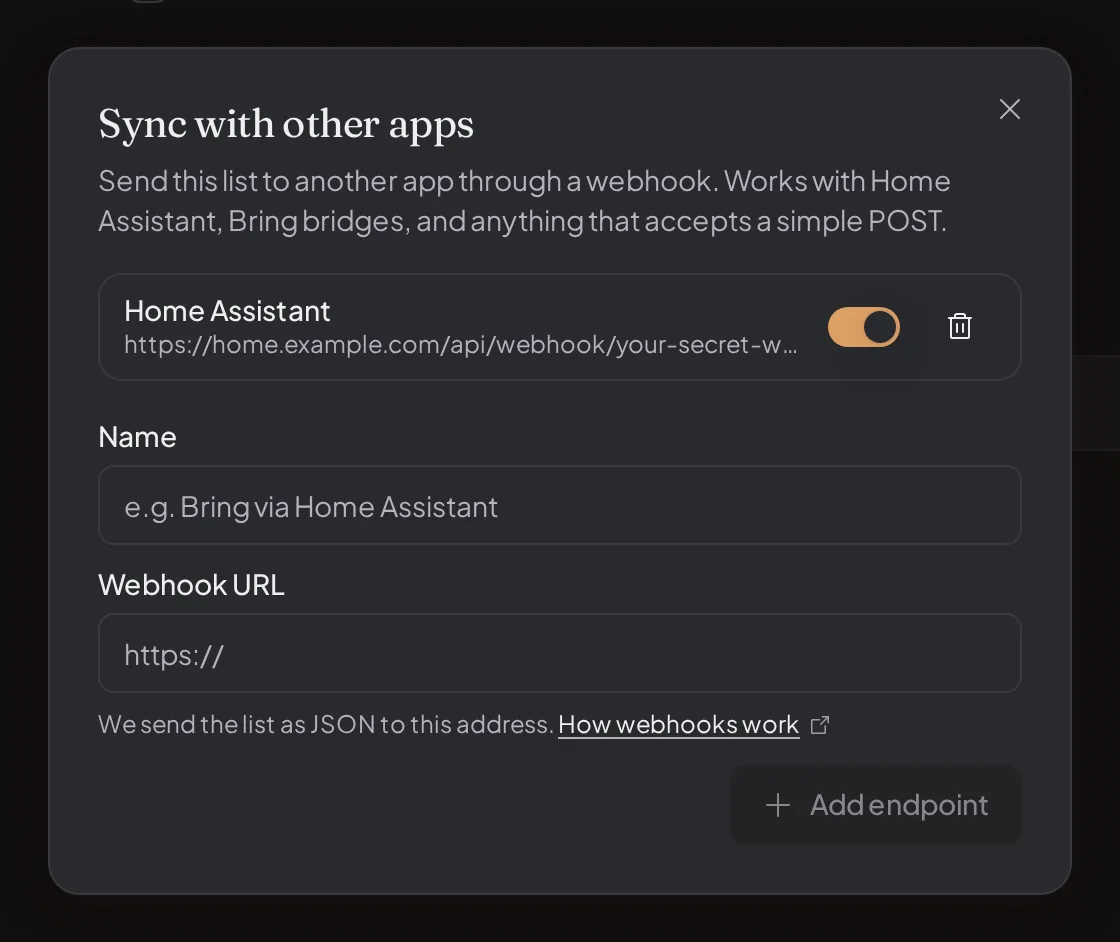
The name is only for you. It is what the send option is called in the menu, so "Home Assistant" or "Bring bridge" beats "Webhook 1".
Treat the address like a password. We do not sign these requests, so anyone who knows the address can send to it and the receiving app cannot tell them apart from us. Keep it out of screenshots and public posts, and replace it if it gets out. What this means in detail.
The address has to begin with https rather than http. That is the difference between a connection
that is encrypted on its way across the internet and one that is readable in transit, and your
shopping list should not travel in the open. We will not accept an http address.
Only the person who owns a list can open Sync with other apps; for a Family list, that is the Family's owner. Your personal lists and your Family's lists keep separate sets of endpoints, so adding one to a Family list does not put it on your personal lists, or the other way round. Personal endpoints are yours: they appear on every personal list you open, including one someone shared with you.
You can switch an endpoint off without deleting it. It stays in the dialog and disappears from the send menu, which is the easy way to pause something you are still setting up.
Endpoints cannot be edited. To change an address, remove the endpoint and add it again.
Send a list
Open the list's List options menu and choose Send to followed by your endpoint's name. Only endpoints that are switched on appear there, and anyone who can open the list can use them.
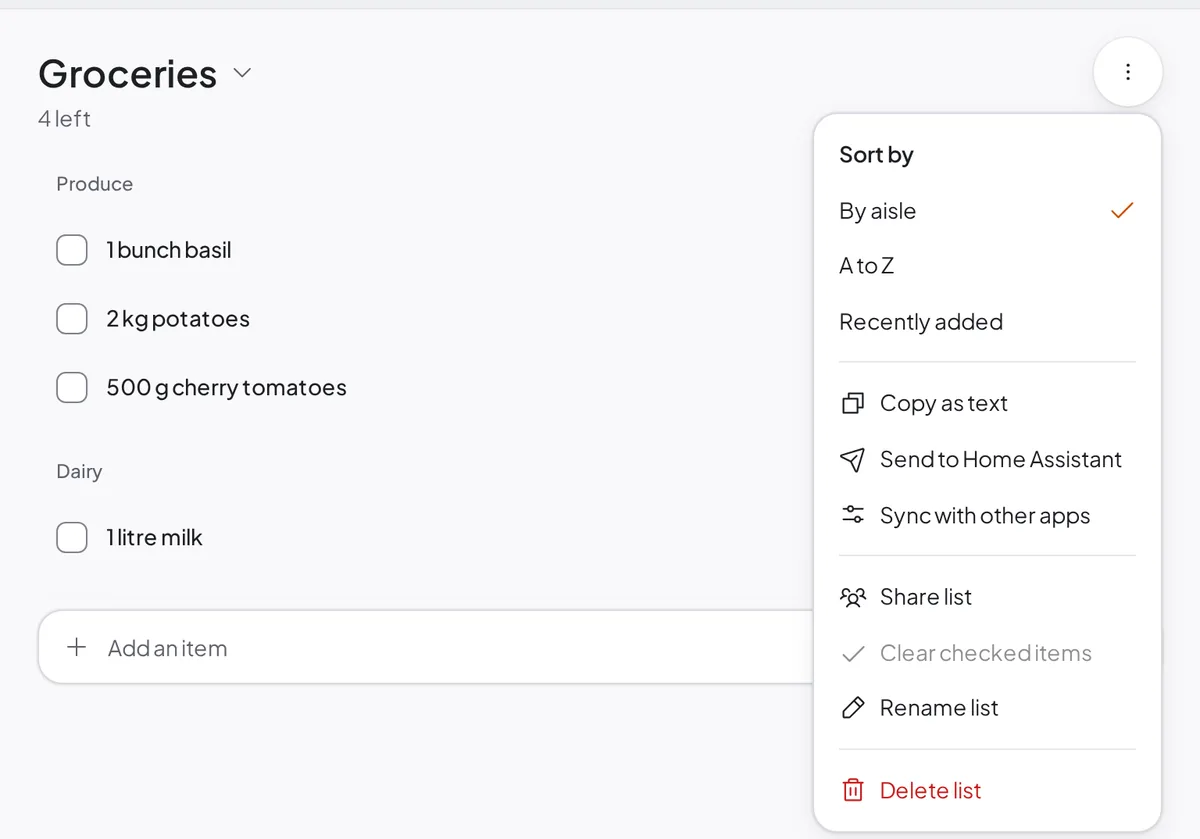
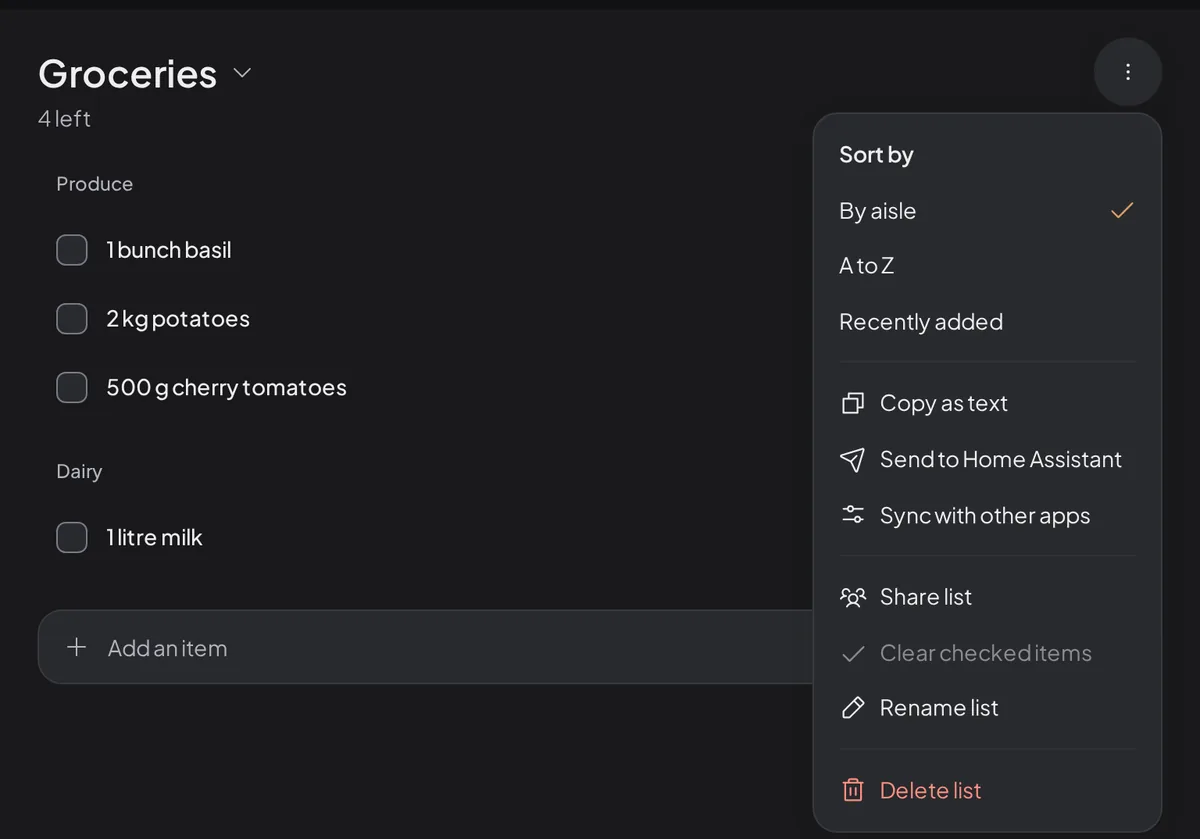
We tell you what happened either way: on success, a confirmation naming how many items went; if the other end could not be reached or refused the delivery, a message saying so.
What we send
Everything from here on is for whoever is building or configuring the receiving end. If someone else set yours up, you can stop reading here and send them the link.
We send the list as JSON, a plain-text format for structured data that essentially every app and programming language can read.
Precisely: one POST request, with a Content-Type: application/json header, and the list as the
request body, in the shape documented below.
A receiver that "accepts webhooks" or "accepts JSON" can take delivery of that, but taking delivery is not the same as understanding it. Nothing else knows Daily Simmer's field names, so unless someone has already written an integration for this format, expect to map our fields onto whatever the other end wants, which is what the Home Assistant example further down is doing.
An example payload
{
  "source": "daily-simmer",
  "list": {
    "id": "k17c8yq3n2b4v6m8p0r2s4t6",
    "name": "Shopping List"
  },
  "items": [
    { "name": "bananen", "quantity": 3, "unit": "", "category": "produce" },
    { "name": "basmati rice", "quantity": 300, "unit": "g", "category": "dry_goods" },
    { "name": "boekweitmeel", "quantity": 250, "unit": "g", "category": "dry_goods" },
    { "name": "carrot", "quantity": 150, "unit": "g", "category": "produce" }
  ]
}
The fields
| Field | Type | What it holds |
|---|---|---|
source | string | Always "daily-simmer". Use it to recognise our requests if the same address receives deliveries from more than one place. |
list.id | string | The list's stable identifier. It does not change when the list is renamed, so it is the right thing to key on if you send the same list repeatedly. |
list.name | string | The list's name as you see it in the app. |
items | array | The unticked items, in the order they were added to the list. This is not necessarily the order you see, which follows the list's Sort by choice. An empty array is possible and valid: it means everything on the list is ticked off. |
items[].name | string | The item name as it appears on your list, in whatever language you wrote it. |
items[].quantity | number | The amount, as stored on the item. An item you added without an amount arrives as 1. The amount is not rounded, so it can have decimals. |
items[].unit | string | The unit as it appears on your list, free text rather than a fixed set: g, ml, tbsp, bunch. An empty string for an item counted in whole pieces, so 3 bananen arrives as a quantity with no unit rather than as 3 piece bananen. |
items[].category | string | The item's shopping category, from the fixed list below. |
We do not convert or round quantities or units before sending. An item arrives with the amount and
unit Daily Simmer stores for it, which can differ from what you read on the screen: the app converts
and rounds amounts for display to suit your measurement settings. For example, an item stored as
1500 g arrives as a quantity of 1500 and a unit of g, even if your list shows 1.5 kg.
Categories
category is always one of these, so you can group items by aisle at the other end without guessing:
produce, dairy, meat, seafood, bakery, frozen, canned, dry_goods, spices,
condiments, snacks, beverages, deli, other.
An item we could not categorise arrives as other rather than with the field missing, so the field
is always there.
How delivery works
Be a little forgiving with what you build, because the delivery model is deliberately simple:
- One attempt. We send once. If the other end is down or cannot be reached, the send fails and we tell you in the app. We do not hold the list and try again later.
- Anything but a success response counts as a failure. We report the status code back to you.
- We ignore whatever you send back. Reply with anything you like; an empty success is fine.
- Send again whenever you want. Sending the same list twice delivers it twice. If your receiver
creates items, use
list.idto tell whether you are updating a list you have seen before or starting a new one, otherwise you will end up with duplicates.
Keeping your endpoint private
We do not sign these requests. If you have connected other services before, you may expect a signature header your code can check to prove a delivery genuinely came from us. There isn't one here, and there is nothing for the receiving end to verify against.
What that means in practice: anyone who knows your address can send to it, and your receiver cannot tell them apart from us. So the secrecy has to live in the address itself: treat the whole thing like a password.
Most receivers make this easy, which is why Home Assistant's webhook IDs are long random strings. If you are writing your own, put a long random segment in the path or as a query parameter and check it before you act on anything:
https://example.com/hooks/shopping/8f2c1d9e4b7a3506c1e8d2f4a9b6730e
Beyond that, the ordinary advice applies: check the contents before you use them, do not let an incoming list trigger anything destructive, and replace the address if it ever ends up somewhere public.
An example: Home Assistant
Home Assistant's webhook trigger is a good match, and this is the whole setup. Create an automation with a webhook trigger and let it write each item into a to-do list:
automation:
  - alias: Shopping list from Daily Simmer
    triggers:
      - trigger: webhook
        webhook_id: 8f2c1d9e4b7a3506c1e8d2f4a9b6730e
        allowed_methods:
          - POST
        local_only: false
    actions:
      - repeat:
          for_each: "{{ trigger.json['items'] }}"
          sequence:
            - action: todo.add_item
              target:
                entity_id: todo.shopping_list
              data:
                item: >-
                  {{ (repeat.item.quantity | string + ' ' + repeat.item.unit) | trim }}
                  {{ repeat.item.name }}
The address you paste into Daily Simmer is then your Home Assistant address followed by
/api/webhook/ and that webhook_id. Generate your own ID rather than copying the one above, and
note that local_only: false is what lets the webhook accept a delivery from outside your home
network. Without it, nothing we send will reach it.
When something doesn't arrive
Work through these in order; between them they cover almost every failed send.
- The endpoint is not in the send menu. It is switched off, or it belongs to a different set: a personal endpoint never appears on a Family list, and a Family endpoint never appears on a personal one. The list's owner can turn it back on in Sync with other apps.
- You get "Couldn't reach" followed by the endpoint's name. We could not make a connection at all.
Usually the address cannot be reached from the public internet, the domain name does not resolve,
or the site's security certificate is invalid; a self-signed certificate will fail here. We send
from the internet, not from your home network, so a local address such as
192.168.1.10orlocalhostcannot be reached. - You get "refused the list" with an error such as 401, 403, or 404. The delivery arrived and the receiver turned it away. Check the address is exactly right, including any secret part, and that the receiver accepts deliveries from outside your network.
- The send succeeds but nothing appears. We got a success response, so the problem is past delivery. Log what actually arrived on your side and compare it with the example above.
- Fewer items arrived than you expected. Ticked items are never sent. Untick what you still need, or clear the ticked items off the list first.